robbyrussellDefaultThe default that Robby Russell uses.
Gallery · 131 bundled themes
All the current themes can be found in the themes/ directory in the Oh My Zsh distribution. See list here.
In order to enable a theme, set ZSH_THEME to the name of the theme in your ~/.zshrc, before sourcing Oh My Zsh:
ZSH_THEME lifecycle — the variable in ~/.zshrc selects a theme file shipped in $ZSH/themes/, which draws your prompt on every new shell.Here is a collection of screenshots and descriptions of themes that have been contributed to Oh My Zsh. There are some missing from this page. If you want to add or edit descriptions, see the format description at the bottom of this page.
Note — You will many times see screenshots for a zsh theme, and try it out, and find that it doesn't look the same for you. This is because many themes require installing a Powerline Font or a Nerd Font in order to render properly. Without them, these themes will render weird prompt symbols. Check out the FAQ for more information.
Also, beware that themes only control what your prompt looks like. This is, the text you see before or after your cursor, where you'll type your commands. Themes don't control things such as the colors of your terminal window (known as color scheme) or the font of your terminal. These are settings that you can change in your terminal emulator. For more information, see what is a zsh theme.
This section uses new, uniform screenshots. To see the previous section, go to Themes (legacy).
robbyrussellDefaultThe default that Robby Russell uses.
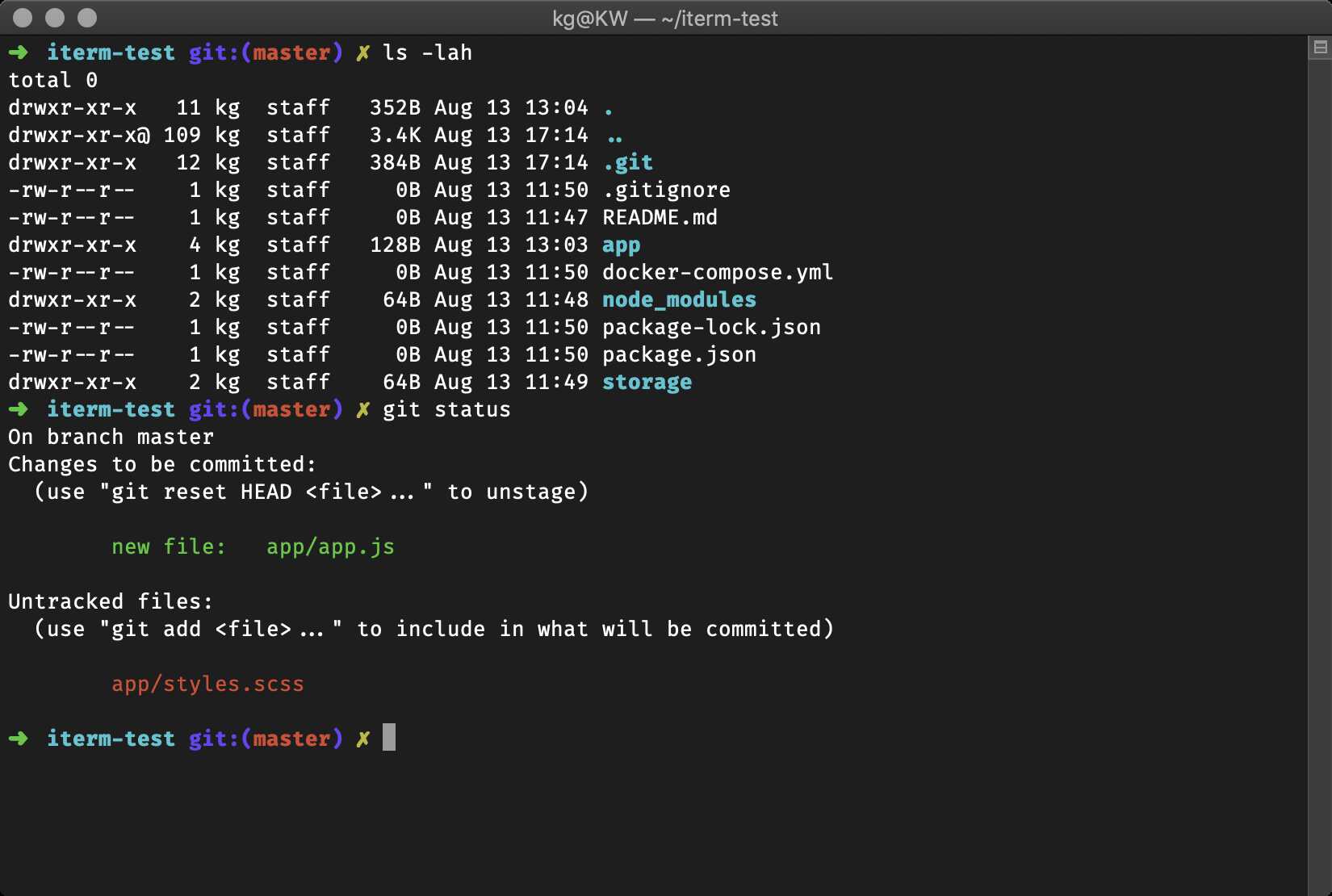
af-magic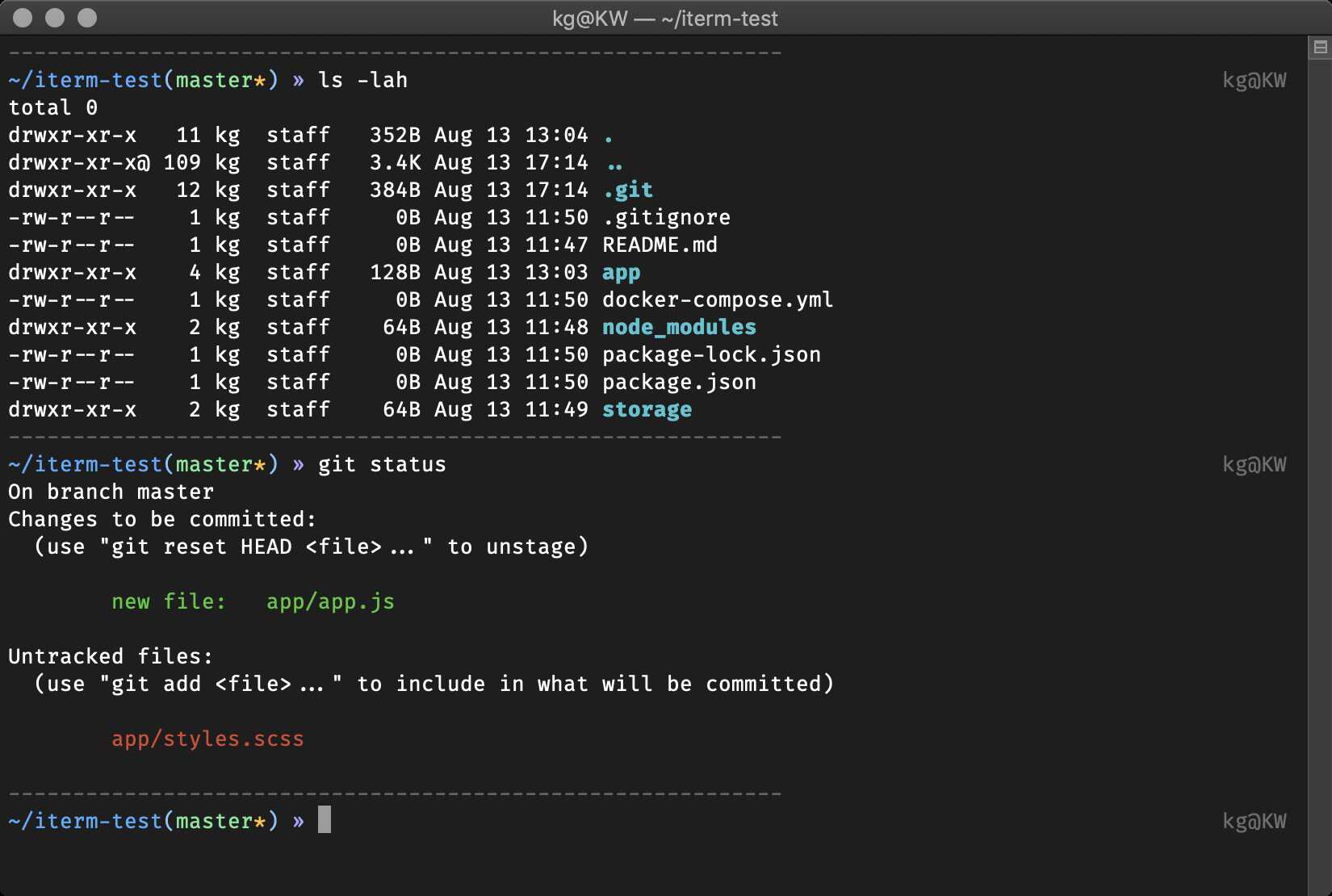
afowler
agnoster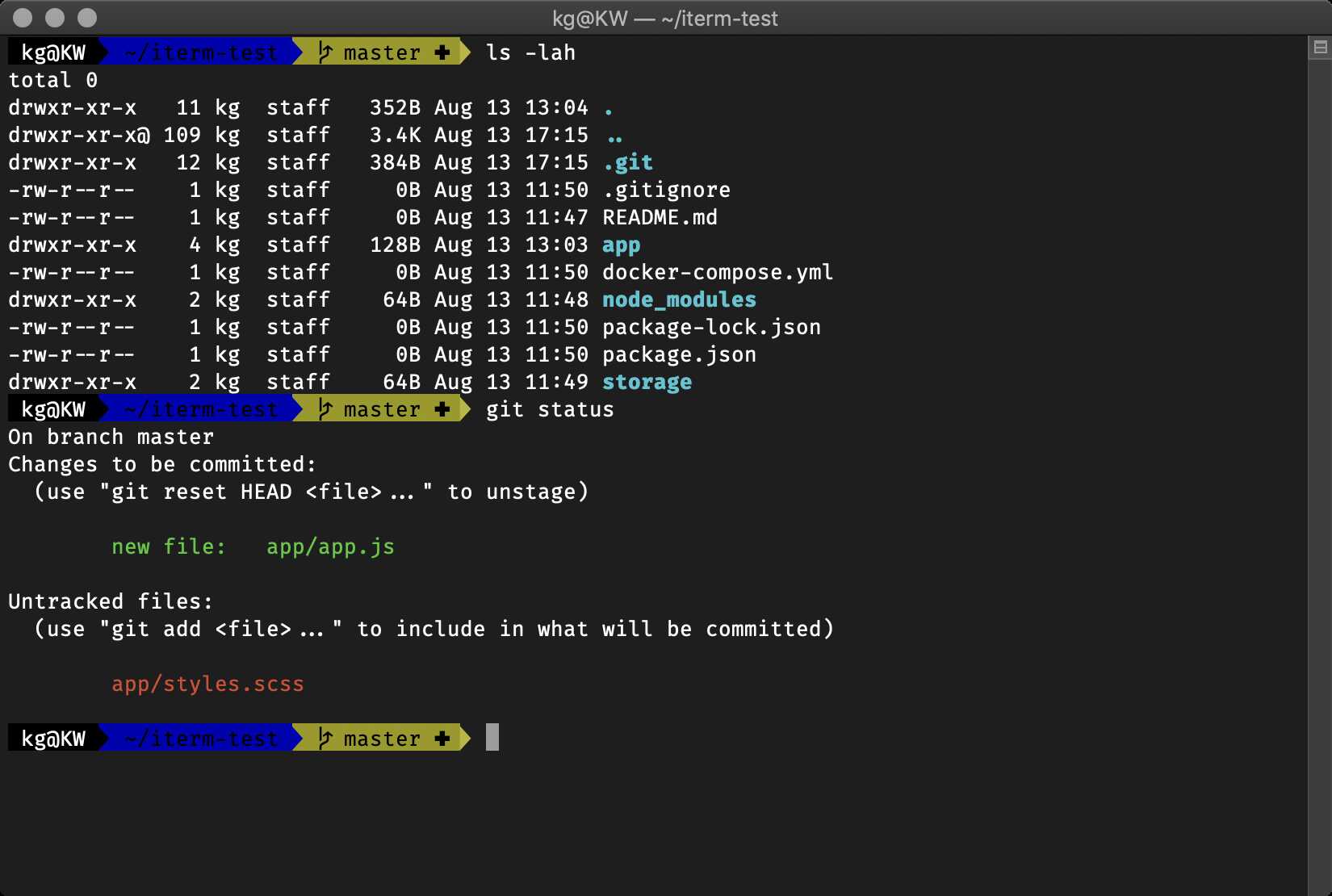
Additional setup:
DEFAULT_USER to your regular username to hide the “user@hostname” info when you’re logged in as yourself on your local machine. Or add prompt_context(){} to ~/.zshrc to always hide the “user@hostname” info.alanpeabody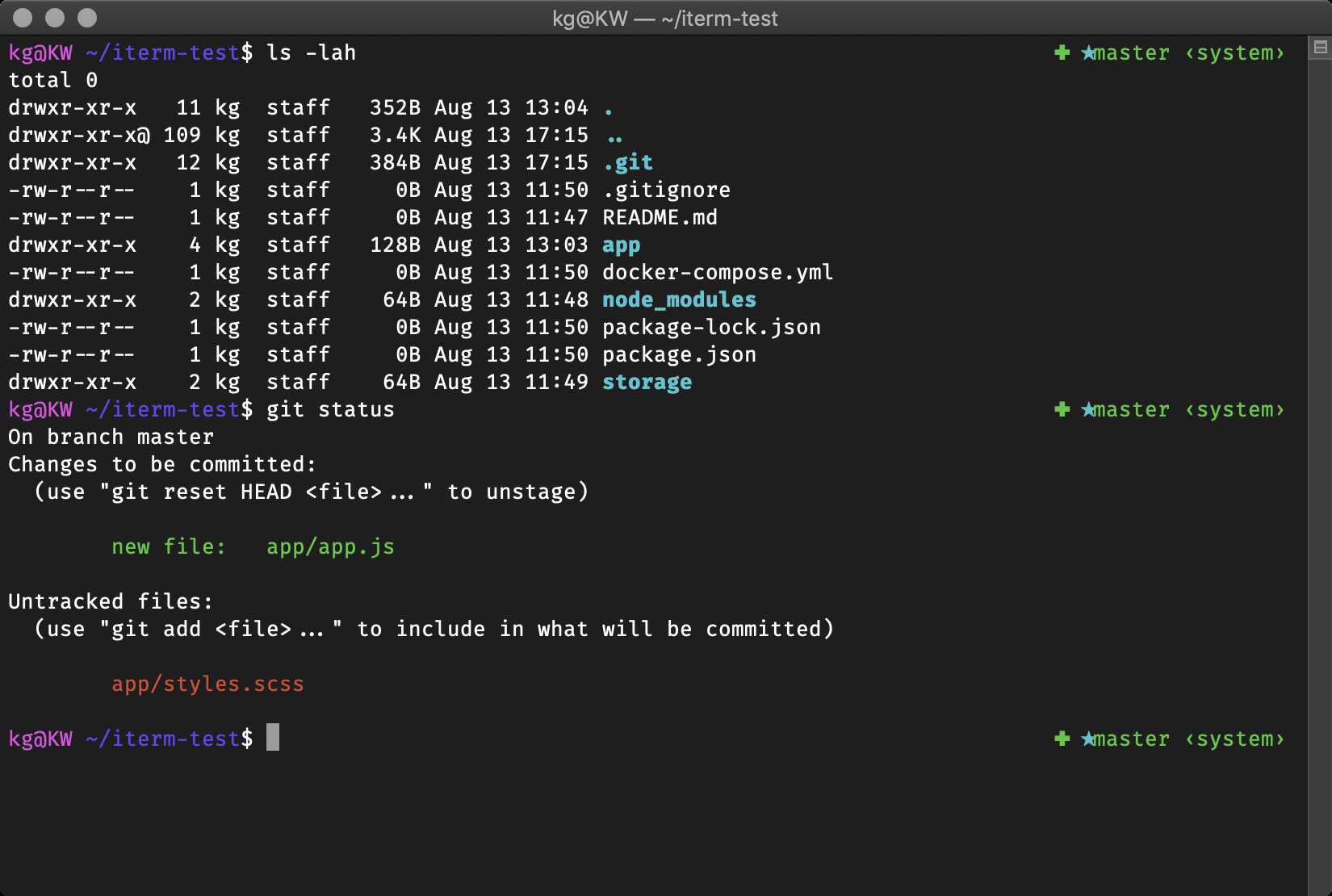
amuse
(You might need to install one of the patched powerline fonts for it to look the same)
apple
arrow
aussiegeek
avit
awesomepanda
bira
blinks
bureau
To use: In the right prompt you see git status and (if you use nvm) the Node.js version.
candy
clean
cloud
crcandy
crunch
cypher
dallas
darkblood
daveverwer
dieter
dogenpunk
dpoggi
dst
dstufft
duellj
eastwood
edvardm
emotty
essembeh
evan
fino-time
fino
fishy
The fish shell prompt with git support
flazz
Has git and vi-command mode support (when enabled)
fletcherm
fox
frisk
frontcube
funky
It’s funky…
fwalch
gallifrey
gallois
garyblessington
gentoo
geoffgarside
gianu
gnzh
gozilla
half-life
humza
imajes
intheloop
itchy
jaischeema
jbergantine
jispwoso
jnrowe
jonathan
josh
jreese
jtriley
juanghurtado
junkfood
Totally ripped off Dallas theme
kafeitu
kardan
kennethreitz
kolo
kphoen
lambda
linuxonly
(As the name states, this only works on Linux)
lukerandall
macovsky
maran
mgutz
mh
michelebologna
mikehmiloshadzic
minimal
mortalscumbag
Also tells you when logged in over ssh
mrtazz
murilasso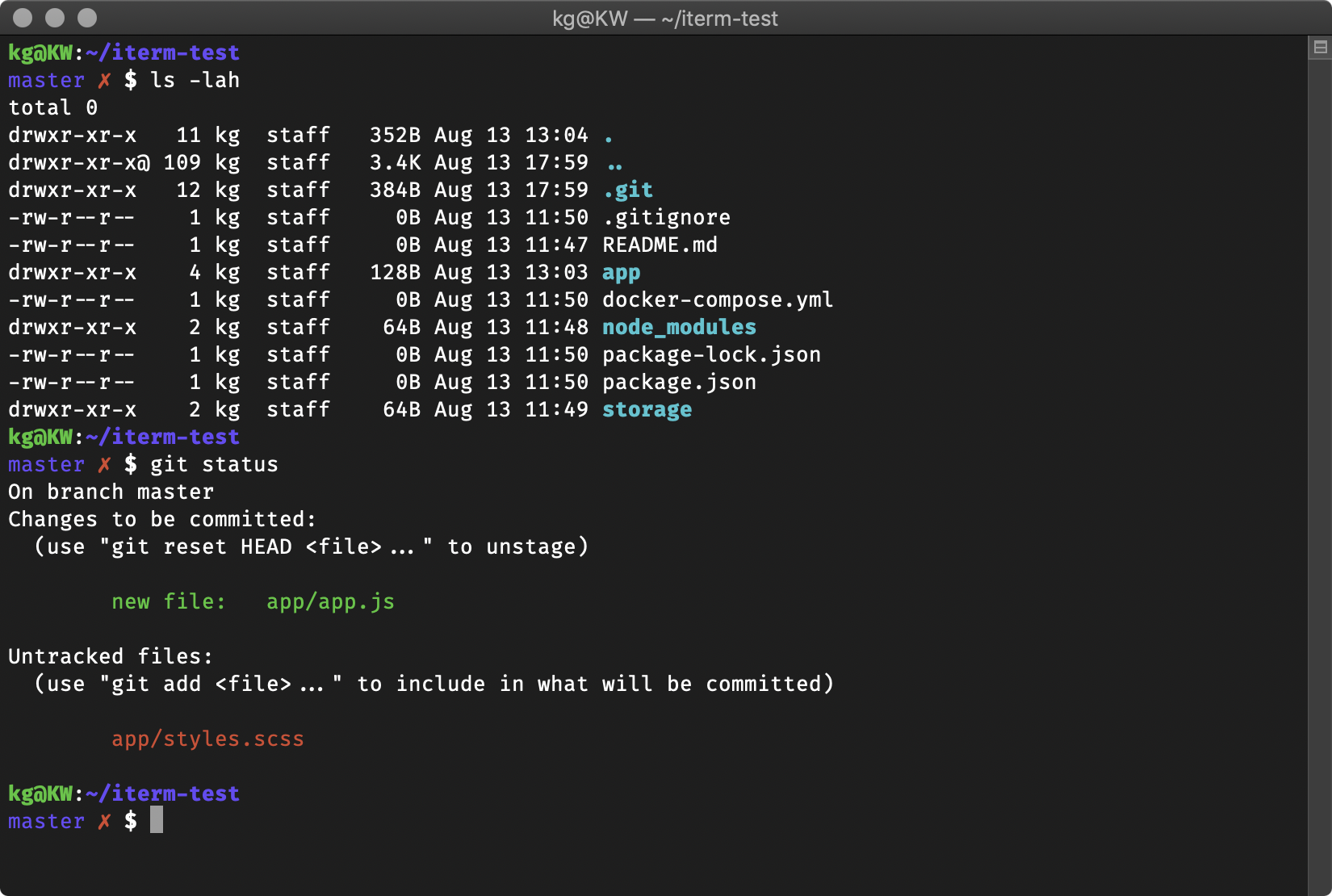
muse
nanotech
nebirhos
nicoulaj
norm
obraun
peepcode
philips
pmcgee
pygmalion
re5et
refined
rgm
risto
rixius
rkj-repos
sammy
simonoff
simple
skaro
smt
Soliah
sonicradish
sorin
sporty_256
steeef
strug
sunaku
Exit status if nonzero, status & branch if git, pwd always.
sunrise
Lightweight prompt with exit status and git status consistent mode line.
superjarin
Git status, git branch, and ruby, all in a no muss, no fuss prompt! Works with RVM, chruby, and rbenv (just activate the corresponding plugin).
suvash
Username, host, directory, git branch and rvm gemset
takashiyoshida
terminalparty
There is a party every day.
theunraveler
Minimal, informative when it needs to be.
tjkirch
Based on dst, plus a lightning bolt and return codes.
tonotdo
trapd00r
wedisagree
Instructions to further customize the theme are available as comments in the theme file.
wezm
wezm+
wuffers
xiong-chiamiov
xiong-chiamiov-plus
ys
Clean, simple, compatible and meaningful.Tested on Linux, Unix and Windows under ANSI colors.
It is recommended to use with a dark background.
zhann
You can find more themes here.
We have enough themes for the time being. Please fork the project and add on in there, you can let people know how to grab it from there.
Or put into a Gist and add it to the External Themes list.
The theme descriptions in this page should contain:
ZSH_THEME in ~/.zshrc
We use manually-constructed screenshots because some of the themes require additional terminal configuration to look their best, and so the code in example shell sessions can showcase the theme's features. There is also a separate collection of automatically-generated screenshots linked at the bottom of this page.
We host all the screenshot images on GitHub itself, to avoid external dependencies on other hosting services or URLs that might break. Please, compress images before. We use issue attachments which will get them in to githubusercontent.com. (It's also possible to store image files in a GitHub wiki itself, but this requires you to have Contributor permissions for the repo whose Wiki you're editing. The issue-attachment method can be done by anybody.)
To upload an image to GitHub, just drag and drop it into the text area on an issue you're editing. You can use issue #3619 for this to avoid spamming people with notifications about new issues. The uploaded image will turn in to an image in Markdown format. Edit that to use the special [](image-url) syntax to make the image link to itself, so people can open the image in a new tab to view it full size. (Images inside a wiki page may be displayed scaled down.)
For example:
[](https://cloud.githubusercontent.com/assets/1441704/6315419/915f6ca6-ba01-11e4-95b3-2c98114b5e5c.png)If you have several uploaded screenshot links you need to convert to that self-linked syntax, you can use this sed command on the markdown file to programmatically convert them.
sed 's/^!\[[a-zA-Z0-9 -]*\](\([^)]*\)) *$/[&](\1)/'Version 2019-08 — The current set of theme screenshots was generated automatically by @Kovah's Oh My Zsh-screenshot-generation tool, using on macOS Mojave (10.14.5) with the macOS Terminal app. The used theme is Basic with the default settings and colors. The font was switched to Fira Code at 13 pt to enable some special characters in certain themes. All terminal windows have a size of 100x31.
This wiki is automatically published from ohmyzsh/wiki — to edit this page (add a theme description or fix one), make your changes there and submit a Pull Request.